
A patient app in Swift
The screens of a national health service's patient app, for iPhone and iPad, with SwiftUI and Lily.
What you'll build
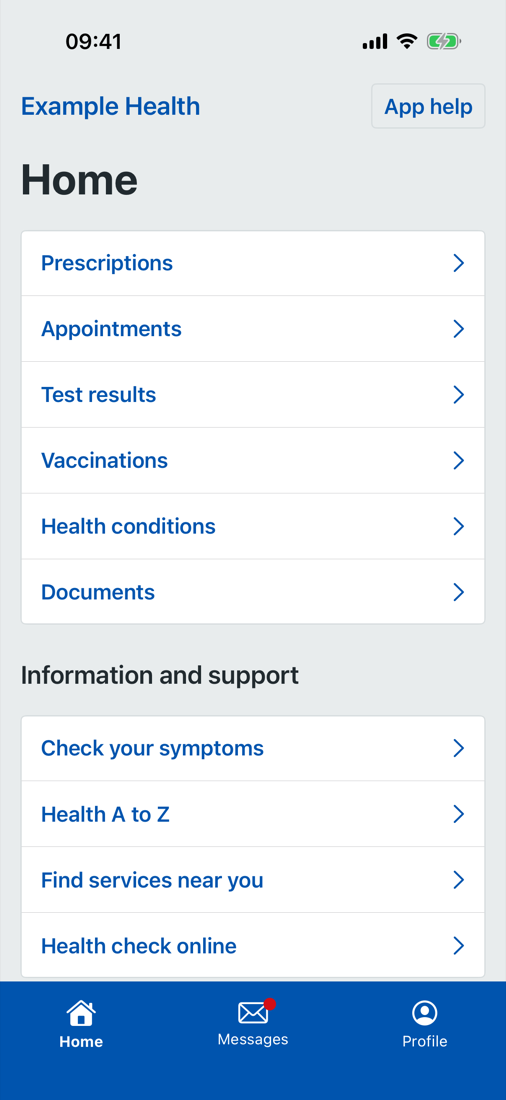
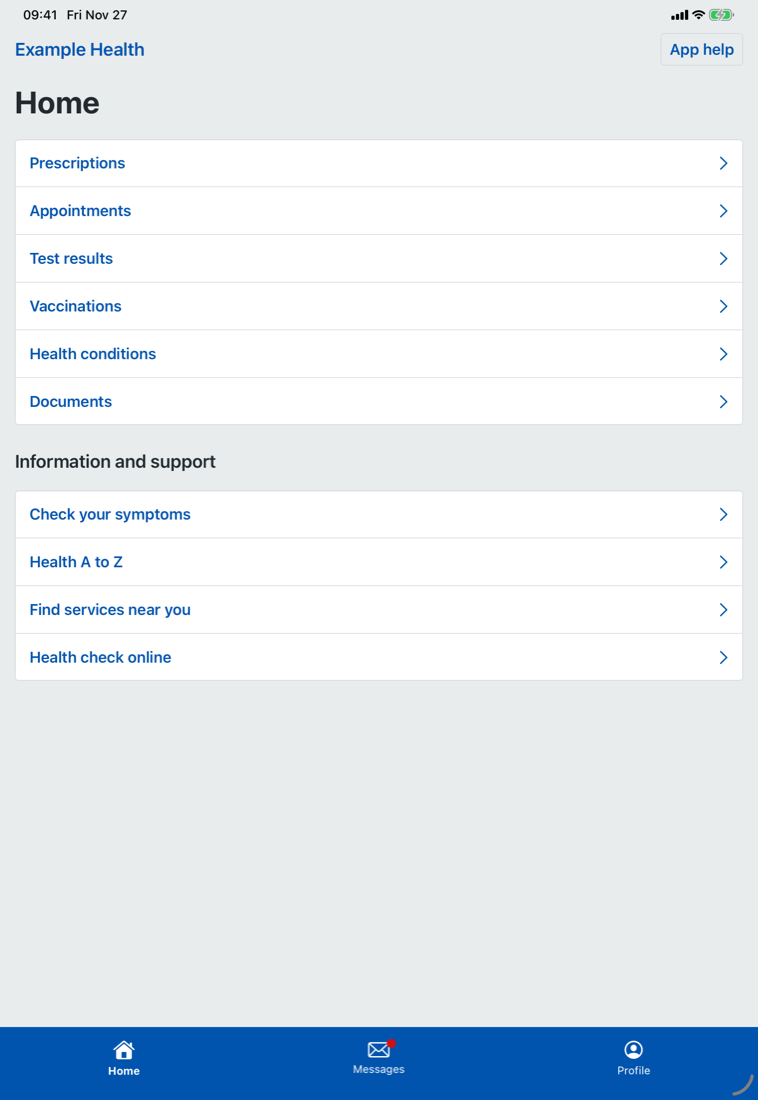
A patient app of the kind public health services publish: a start screen, then home, messages and profile in a tab bar, and from home the appointments, the medicines asked for and the test results. Seven screens, one app for iPhone and iPad in portrait, with example data for a person who does not exist. About an hour.
Whose look this is
The app wears Lily's NHS England patient theme: its colours, its type and its shapes. It is not the NHS App, and it does not say it is. It has its own name, Example Health, and no NHS name, logo or wordmark. A theme lends a service its look; it never lends it another body's identity, so your app supplies its own name and mark (visual identity). Swap the theme for another, and the same code is another country's app.
Before you start
You need Xcode 26 or later and the Swift tutorial's first
steps. In Xcode, choose File ▸ New ▸ Project ▸ iOS ▸ App, name it PatientApp, with SwiftUI, and check Include Tests. Then File ▸ Add Package Dependencies…, enter this address, and add LilyUI and LilyThemes to the app:
https://github.com/LilyDesignSystem/lily-design-system-swift.gitVersion 0.1.0 or later. Each code block below is one whole file in the app's PatientApp folder; replace the file Xcode made where the names match, and
delete ContentView.swift.
Step 1: Write the words
Every word the app shows is in one file, so translating the app touches no view. A count that changes its words, such as "1 unread message", is a function the app owns: Lily never builds a sentence.
PatientApp/Words.swift
// Every word the app shows, in one place, so the app can be translated without touching a view.

enum Words {
    static let appName = "Example Health"
    static let help = "Help"
    static let appHelp = "App help"
    static let startHeading = "Access your health services"
    static let continueLabel = "Continue"
    static let version = "Version 1.0"
    static let back = "Back"
    static let tabs = "Main sections"
    static let home = "Home"
    static let messages = "Messages"
    static let profile = "Profile"
    static func unread(_ count: Int) -> String { count == 1 ? "1 unread message" : "\(count) unread messages" }

    static let prescriptions = "Prescriptions"
    static let appointments = "Appointments"
    static let testResults = "Test results"
    static let vaccinations = "Vaccinations"
    static let healthConditions = "Health conditions"
    static let documents = "Documents"
    static let support = "Information and support"
    static let symptoms = "Check your symptoms"
    static let healthAToZ = "Health A to Z"
    static let servicesNearYou = "Find services near you"
    static let healthCheck = "Health check online"

    static func inboxCount(_ count: Int) -> String { count == 1 ? "You have 1 inbox" : "You have \(count) inboxes" }

    static let dateOfBirth = "Date of birth"
    static let patientNumber = "Patient number"
    static let othersServices = "Manage health services for others"
    static let personalDetails = "Personal details"
    static let contactDetails = "Contact details"
    static let yourSurgery = "Your GP surgery"
    static let healthChoices = "Health choices"
    static let appSettings = "App settings"
    static let faceID = "Face ID"
    static let loginSecurity = "Login and security"
    static let notifications = "Notifications"
    static let cookies = "Cookies"

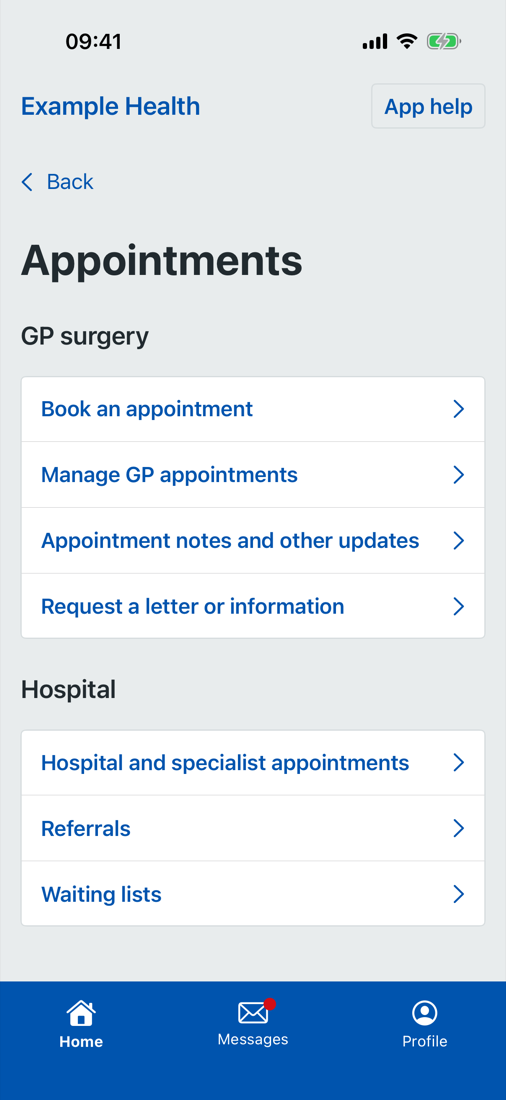
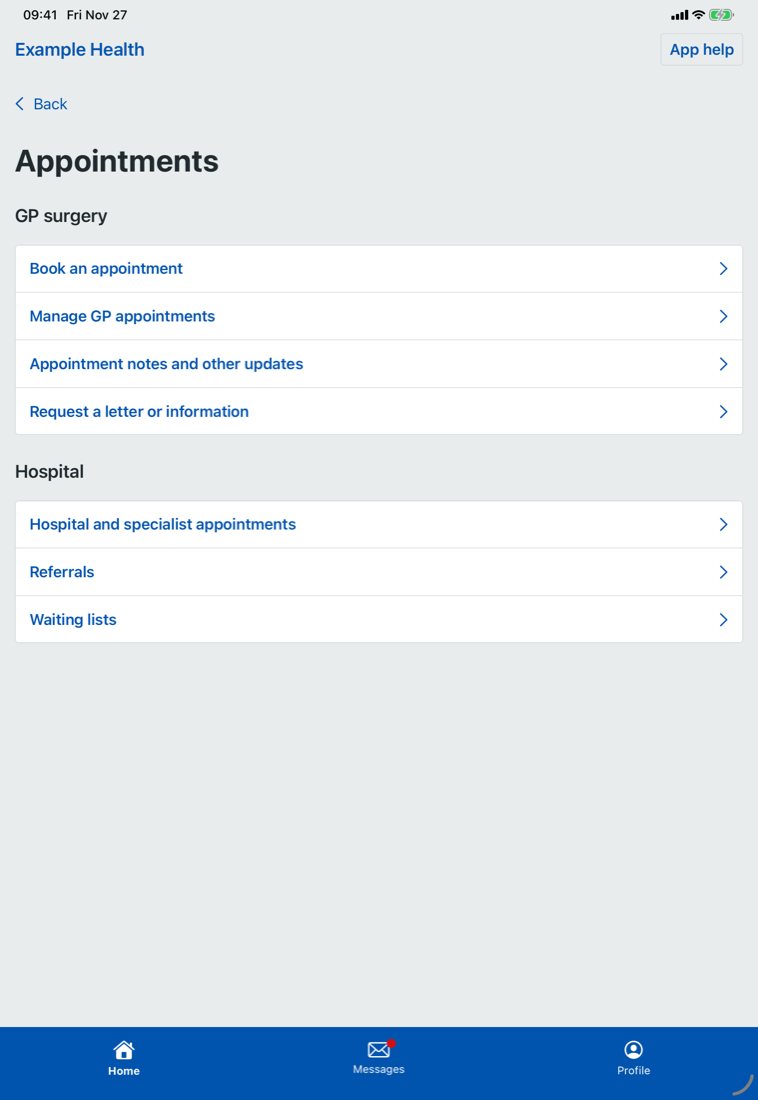
    static let gpSurgery = "GP surgery"
    static let bookAppointment = "Book an appointment"
    static let manageAppointments = "Manage GP appointments"
    static let appointmentNotes = "Appointment notes and other updates"
    static let requestLetter = "Request a letter or information"
    static let hospital = "Hospital"
    static let hospitalAppointments = "Hospital and specialist appointments"
    static let referrals = "Referrals"
    static let waitingLists = "Waiting lists"

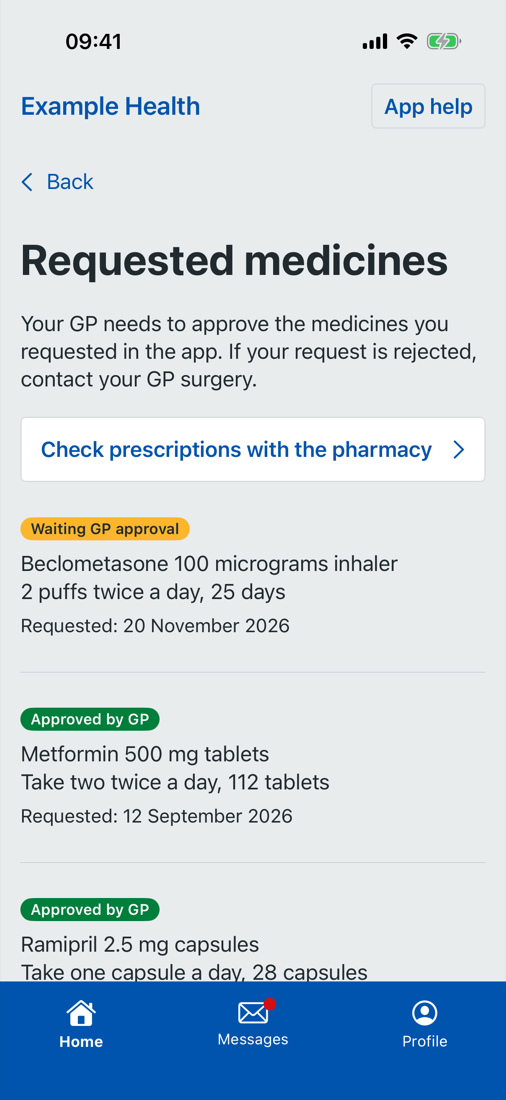
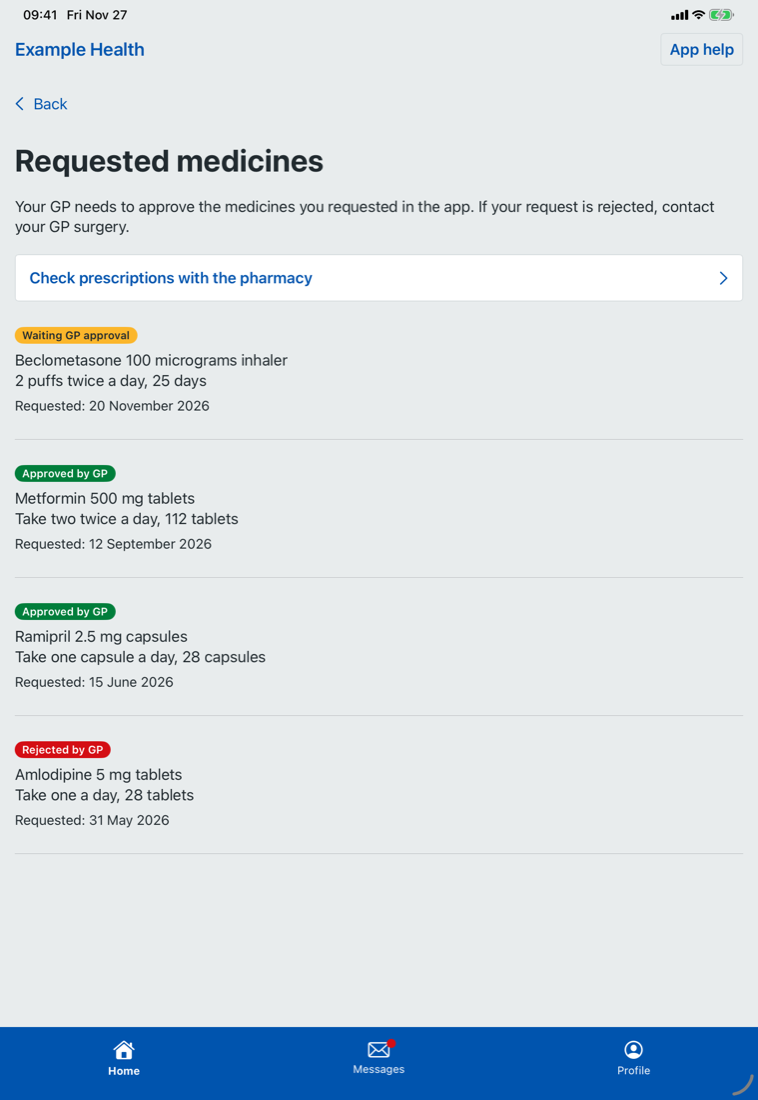
    static let requestedMedicines = "Requested medicines"
    static let requestedIntro = "Your GP needs to approve the medicines you requested in the app. If your request is rejected, contact your GP surgery."
    static let checkPharmacy = "Check prescriptions with the pharmacy"
    static let status = "Status"
    static func requested(_ date: String) -> String { "Requested: \(date)" }
    static func statusWords(_ status: RequestStatus) -> String {
        switch status {
        case .waiting: "Waiting GP approval"
        case .approved: "Approved by GP"
        case .rejected: "Rejected by GP"
        }
    }

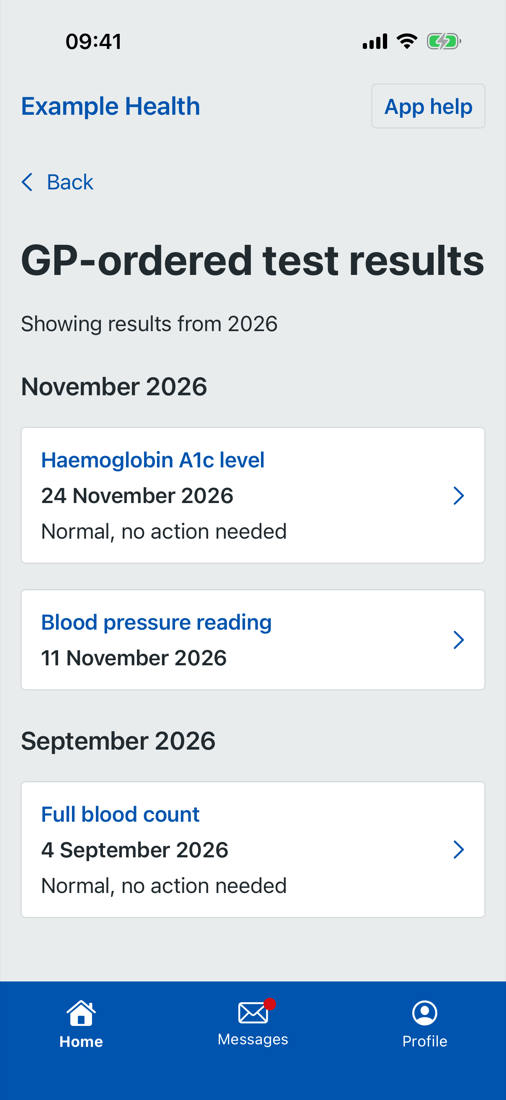
    static let resultsHeading = "GP-ordered test results"
    static func showingFrom(_ year: String) -> String { "Showing results from \(year)" }

    static let notBuilt = "This screen is not part of the tutorial. Its link shows where it would go."
}
Step 2: The records
A real app asks its service for these after the person signs in. A date in a record is a calendar date, not a moment, so it is read and written in UTC and no time zone moves it a day.
PatientApp/Records.swift
import Foundation

// The patient's records: example data for a person who does not exist. A real app asks its service for them, after sign-in.

enum RequestStatus {
    case waiting, approved, rejected
}

struct Inbox: Identifiable {
    let id: String
    let title: String
    let intro: String
    let topics: [String]
    let unread: Int
}

struct MedicineRequest: Identifiable {
    let id: String
    let name: String
    let directions: String
    /** YYYY-MM-DD: a calendar date, not a moment. */
    let requested: String
    let status: RequestStatus
}

struct TestResult: Identifiable {
    let id: String
    let name: String
    /** YYYY-MM-DD. */
    let date: String
    /** The clinician's comment, when there is one. */
    let comment: String?
}

enum Records {
    static let name = "Sam Taylor"
    static let birthDate = "1990-07-20"
    static let patientNumber = "000 000 0000"

    static let inboxes = [
        Inbox(
            id: "services", title: "Your healthcare services", intro: "You may receive messages:",
            topics: ["from your GP surgery", "about hospital and specialist appointments", "about invitations and reminders"],
            unread: 1),
        Inbox(
            id: "hospital", title: "Your hospital and specialist doctors", intro: "You may send or receive messages about:",
            topics: ["your health record", "documents and letters", "questionnaires before an appointment"], unread: 0),
        Inbox(
            id: "requests", title: "Replies to your GP requests", intro: "You may receive replies to questions you sent about:",
            topics: ["your health", "admin, such as a fit note"], unread: 0),
        Inbox(
            id: "surgery", title: "Practice messaging", intro: "Send and view messages from staff at your GP surgery",
            topics: [], unread: 0),
    ]

    static let requests = [
        MedicineRequest(
            id: "1", name: "Beclometasone 100 micrograms inhaler", directions: "2 puffs twice a day, 25 days",
            requested: "2026-11-20", status: .waiting),
        MedicineRequest(
            id: "2", name: "Metformin 500 mg tablets", directions: "Take two twice a day, 112 tablets", requested: "2026-09-12",
            status: .approved),
        MedicineRequest(
            id: "3", name: "Ramipril 2.5 mg capsules", directions: "Take one capsule a day, 28 capsules", requested: "2026-06-15",
            status: .approved),
        MedicineRequest(
            id: "4", name: "Amlodipine 5 mg tablets", directions: "Take one a day, 28 tablets", requested: "2026-05-31",
            status: .rejected),
    ]

    static let results = [
        TestResult(id: "1", name: "Haemoglobin A1c level", date: "2026-11-24", comment: "Normal, no action needed"),
        TestResult(id: "2", name: "Blood pressure reading", date: "2026-11-11", comment: nil),
        TestResult(id: "3", name: "Full blood count", date: "2026-09-04", comment: "Normal, no action needed"),
    ]
}

/// Dates as the app's readers write them. A record's date is a calendar date, so it is read and written in UTC: no time zone
/// moves it a day.
enum Dates {
    static let locale = Locale(identifier: "en-GB")

    private static func day(_ iso: String) -> Date? {
        let parse = ISO8601DateFormatter()
        parse.formatOptions = [.withFullDate]
        return parse.date(from: iso)
    }

    static func long(_ iso: String) -> String {
        day(iso)?.formatted(Date.FormatStyle(date: .long, time: .omitted, locale: locale, timeZone: .gmt)) ?? iso
    }

    static func month(_ iso: String) -> String {
        day(iso)?.formatted(Date.FormatStyle(locale: locale, timeZone: .gmt).month(.wide).year()) ?? iso
    }
}
Step 3: The parts every screen shares
A screen with its heading and, when it was pushed, a Back button; a section heading; and the link list that is the app's way into every service. Each row is a button that says its words; the chevron is decoration, hidden from VoiceOver. A row's text wraps at any text size rather than being cut off.
PatientApp/Parts.swift
import LilyThemes
import LilyUI
import SwiftUI

/// One screen: a Back button when it was pushed, its heading, and its content, scrolling on the page colour.
struct Screen<Content: View>: View {
    let title: String
    var back = false
    @ViewBuilder let content: () -> Content
    @Environment(\.dismiss) private var dismiss
    @Environment(\.lilyTokens) private var tokens

    var body: some View {
        ScrollView {
            VStack(alignment: .leading, spacing: 20) {
                if back {
                    Button { dismiss() } label: {
                        Label(Words.back, systemImage: "chevron.left").frame(minHeight: 44)
                    }
                    .foregroundStyle(tokens.primary)
                }
                Text(title).font(.largeTitle.bold()).accessibilityAddTraits(.isHeader)
                content()
            }
            .padding(16)
            .frame(maxWidth: .infinity, alignment: .leading)
        }
        .foregroundStyle(tokens.baseContent)
        .background(tokens.base200)
        .toolbar(.hidden, for: .navigationBar)
    }
}

/// A section's heading inside a screen.
struct SectionHeading: View {
    let text: String
    init(_ text: String) { self.text = text }
    var body: some View {
        Text(text).font(.title3.bold()).accessibilityAddTraits(.isHeader).padding(.top, 8)
    }
}

/// One row of a link list: its words and the screen it opens.
struct LinkRow {
    let title: String
    let destination: AnyView

    init(_ title: String, destination: some View) {
        self.title = title
        self.destination = AnyView(destination)
    }

    /// A row whose screen this tutorial does not build.
    init(_ title: String) {
        self.init(title, destination: NotBuilt(title: title))
    }
}

/// Links in a white box, one a row, each with a chevron: the app's way into each service. Each row is a button that says
/// its words; the chevron is decoration.
struct LinkList: View {
    let rows: [LinkRow]
    @Environment(\.lilyTokens) private var tokens

    var body: some View {
        VStack(spacing: 0) {
            ForEach(Array(rows.enumerated()), id: \.offset) { index, row in
                if index > 0 { Divider() }
                NavigationLink { row.destination } label: {
                    HStack {
                        // Wraps at any text size rather than truncating.
                        Text(row.title).bold().multilineTextAlignment(.leading).fixedSize(horizontal: false, vertical: true)
                        Spacer()
                        Image(systemName: "chevron.right").accessibilityHidden(true)
                    }
                    .foregroundStyle(tokens.primary)
                    .padding(.horizontal, 16)
                    .padding(.vertical, 12)
                    .frame(minHeight: 52)
                    .contentShape(Rectangle())
                }
            }
        }
        .background(tokens.base100, in: RoundedRectangle(cornerRadius: tokens.radiusBox))
        .overlay(RoundedRectangle(cornerRadius: tokens.radiusBox).strokeBorder(tokens.base300, lineWidth: tokens.borderBorder))
    }
}

/// The screen behind a link this tutorial does not build.
struct NotBuilt: View {
    let title: String
    var body: some View {
        Screen(title: title, back: true) { Text(Words.notBuilt) }
    }
}
Step 4: The start screen
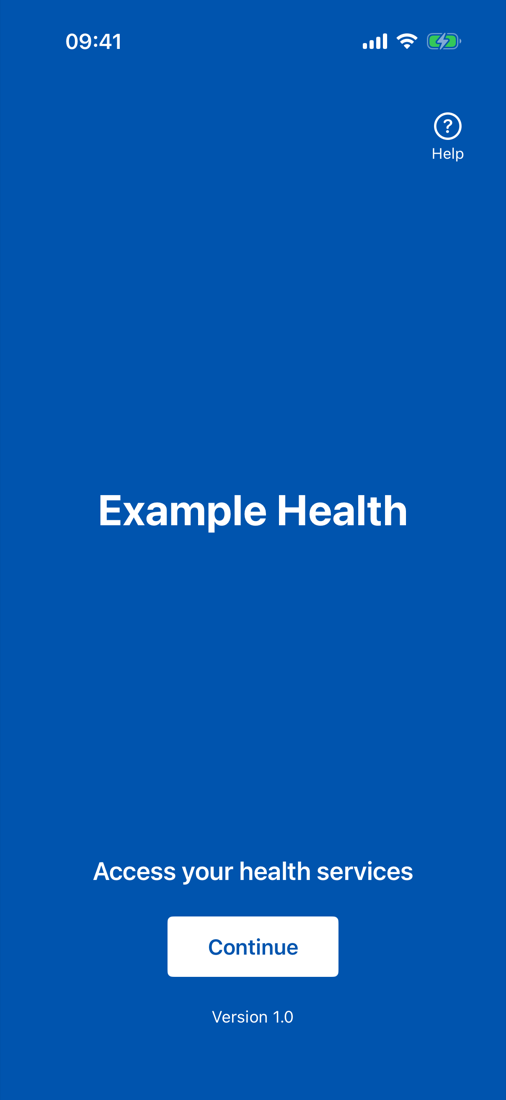
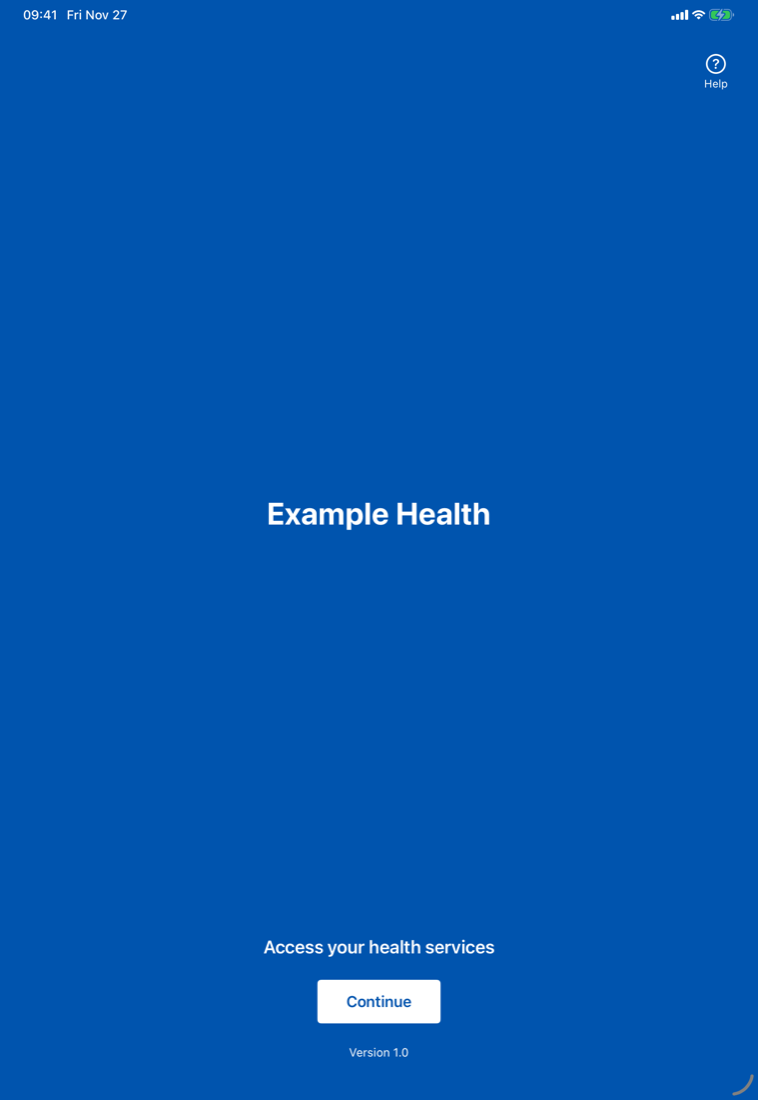
The service's name and a button to go on. A real app signs the person in here; this one goes straight to the home screen.
PatientApp/StartView.swift
import LilyThemes
import SwiftUI

/// The first screen: the service's name and a button to go on. A real app signs the person in here.
struct StartView: View {
    let start: () -> Void
    @Environment(\.lilyTokens) private var tokens

    var body: some View {
        VStack(spacing: 24) {
            HStack {
                Spacer()
                Button {} label: {
                    VStack(spacing: 2) {
                        Image(systemName: "questionmark.circle").font(.title2).accessibilityHidden(true)
                        Text(Words.help).font(.caption)
                    }
                    .frame(minWidth: 44, minHeight: 44)
                }
            }
            Spacer()
            Text(Words.appName).font(.largeTitle.bold()).accessibilityAddTraits(.isHeader)
            Spacer()
            Text(Words.startHeading).font(.title3.bold())
            Button(action: start) {
                Text(Words.continueLabel).bold().padding(.horizontal, 32).frame(minHeight: 48)
            }
            .foregroundStyle(tokens.primary)
            .background(tokens.base100, in: RoundedRectangle(cornerRadius: tokens.radiusField))
            Text(Words.version).font(.footnote)
        }
        .padding(24)
        .foregroundStyle(tokens.primaryContent)
        .tint(tokens.primaryContent)
        .frame(maxWidth: .infinity, maxHeight: .infinity)
        .background(tokens.primary)
    }
}
Step 5: Home
PatientApp/HomeView.swift
import SwiftUI

struct HomeView: View {
    var body: some View {
        Screen(title: Words.home) {
            LinkList(rows: [
                LinkRow(Words.prescriptions, destination: PrescriptionsView()),
                LinkRow(Words.appointments, destination: AppointmentsView()),
                LinkRow(Words.testResults, destination: TestResultsView()),
                LinkRow(Words.vaccinations),
                LinkRow(Words.healthConditions),
                LinkRow(Words.documents),
            ])
            SectionHeading(Words.support)
            LinkList(rows: [
                LinkRow(Words.symptoms), LinkRow(Words.healthAToZ), LinkRow(Words.servicesNearYou), LinkRow(Words.healthCheck),
            ])
        }
    }
}
Step 6: Messages
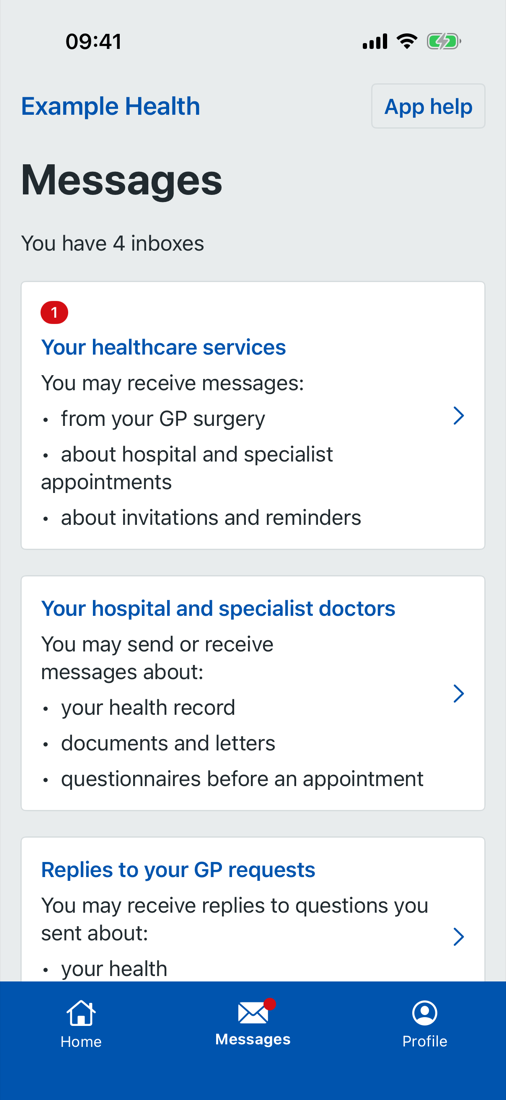
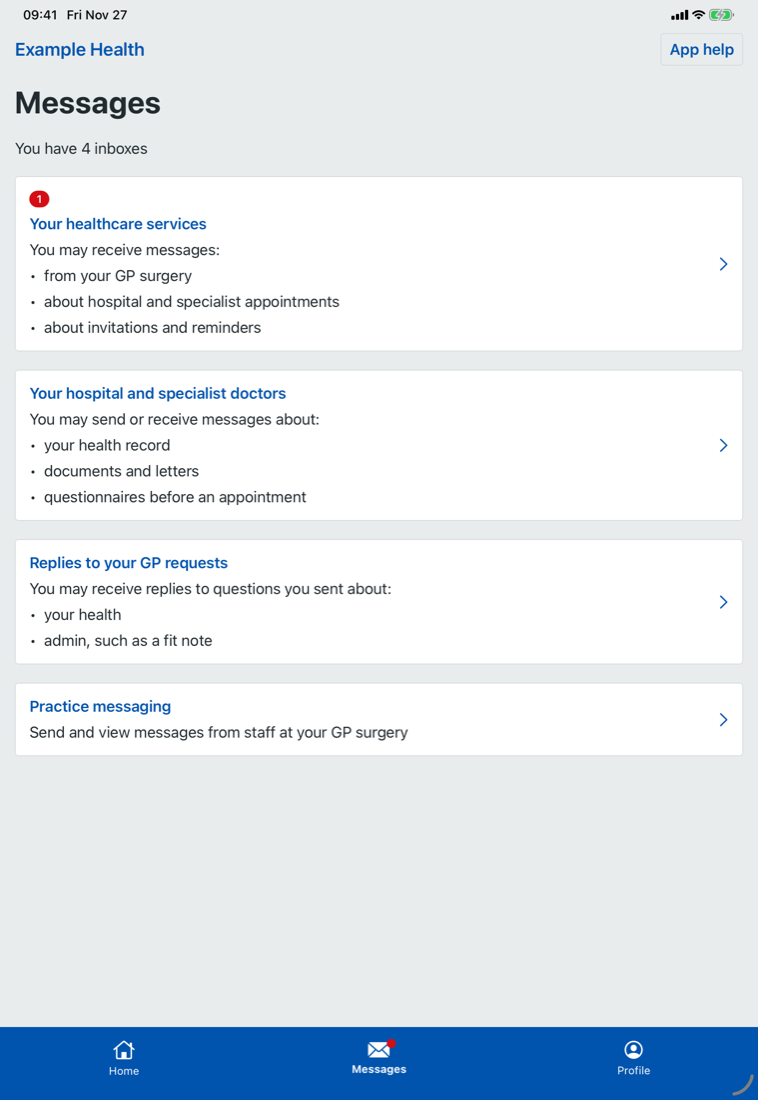
Each inbox is a Lily Card that opens it. The unread count is a Lily Badge: VoiceOver reads "1 unread message", not "1".
PatientApp/MessagesView.swift
import LilyUI
import SwiftUI

/// The inboxes, each a card that opens it. An unread count is a Lily badge, which VoiceOver reads in words.
struct MessagesView: View {
    var body: some View {
        Screen(title: Words.messages) {
            Text(Words.inboxCount(Records.inboxes.count))
            ForEach(Records.inboxes) { inbox in
                NavigationLink { NotBuilt(title: inbox.title) } label: { InboxCard(inbox: inbox) }
            }
        }
    }
}

private struct InboxCard: View {
    let inbox: Inbox
    @Environment(\.lilyTokens) private var tokens

    var body: some View {
        Card {
            HStack {
                VStack(alignment: .leading, spacing: 8) {
                    if inbox.unread > 0 {
                        Badge(String(inbox.unread), kind: .error, label: Words.unread(inbox.unread))
                    }
                    Text(inbox.title).bold().foregroundStyle(tokens.primary)
                    Text(inbox.intro)
                    ForEach(inbox.topics, id: \.self) { topic in
                        Text("•  \(topic)")
                    }
                }
                .multilineTextAlignment(.leading)
                Spacer()
                Image(systemName: "chevron.right").foregroundStyle(tokens.primary).accessibilityHidden(true)
            }
        }
    }
}
Step 7: Profile
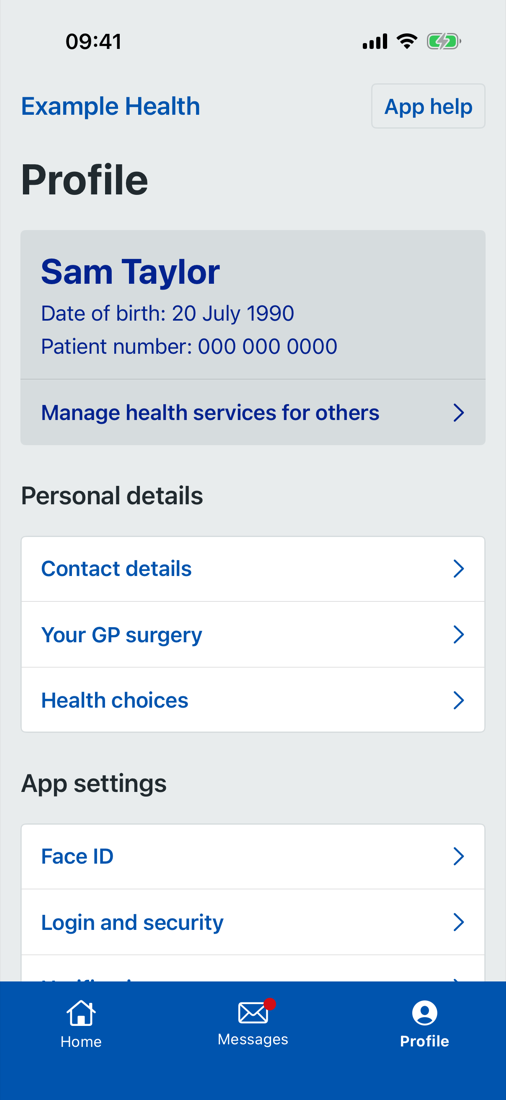
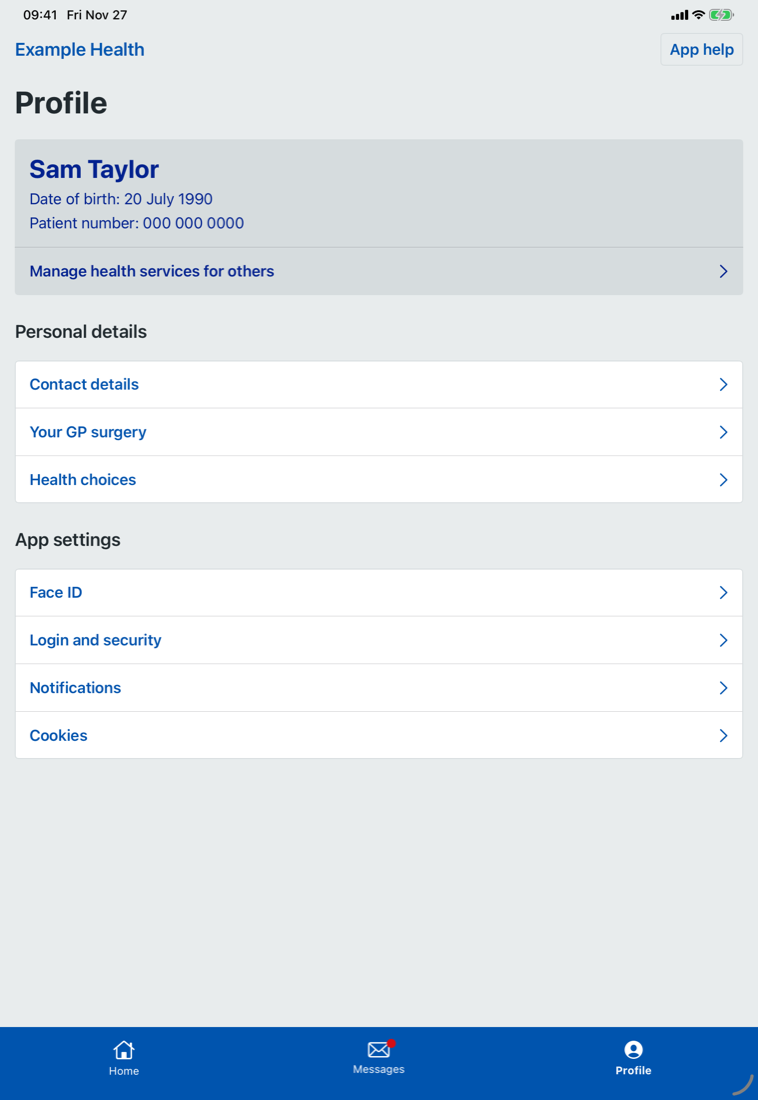
Who the app is about comes first: name, date of birth and number, read by VoiceOver as one group.
PatientApp/ProfileView.swift
import LilyThemes
import SwiftUI

struct ProfileView: View {
    @Environment(\.lilyTokens) private var tokens

    var body: some View {
        Screen(title: Words.profile) {
            // The person the app is about: their name, date of birth and number, read as one group.
            VStack(alignment: .leading, spacing: 0) {
                VStack(alignment: .leading, spacing: 6) {
                    Text(Records.name).font(.title.bold()).accessibilityAddTraits(.isHeader)
                    Text("\(Words.dateOfBirth): \(Dates.long(Records.birthDate))")
                    Text("\(Words.patientNumber): \(Records.patientNumber)")
                }
                .padding(16)
                .accessibilityElement(children: .combine)
                Divider()
                NavigationLink { NotBuilt(title: Words.othersServices) } label: {
                    HStack {
                        Text(Words.othersServices).bold().multilineTextAlignment(.leading)
                        Spacer()
                        Image(systemName: "chevron.right").accessibilityHidden(true)
                    }
                    .padding(16)
                }
            }
            .foregroundStyle(tokens.secondary)
            .background(tokens.base300, in: RoundedRectangle(cornerRadius: tokens.radiusBox))
            SectionHeading(Words.personalDetails)
            LinkList(rows: [LinkRow(Words.contactDetails), LinkRow(Words.yourSurgery), LinkRow(Words.healthChoices)])
            SectionHeading(Words.appSettings)
            LinkList(rows: [
                LinkRow(Words.faceID), LinkRow(Words.loginSecurity), LinkRow(Words.notifications), LinkRow(Words.cookies),
            ])
        }
    }
}
Step 8: Appointments
PatientApp/AppointmentsView.swift
import SwiftUI

struct AppointmentsView: View {
    var body: some View {
        Screen(title: Words.appointments, back: true) {
            SectionHeading(Words.gpSurgery)
            LinkList(rows: [
                LinkRow(Words.bookAppointment), LinkRow(Words.manageAppointments), LinkRow(Words.appointmentNotes),
                LinkRow(Words.requestLetter),
            ])
            SectionHeading(Words.hospital)
            LinkList(rows: [LinkRow(Words.hospitalAppointments), LinkRow(Words.referrals), LinkRow(Words.waitingLists)])
        }
    }
}
Step 9: Requested medicines
Each request's status is a Lily Badge in words, coloured by its kind but never
by colour alone, and each medicine is a Lily MedicationView.
PatientApp/PrescriptionsView.swift
import LilyUI
import SwiftUI

/// The medicines the person asked for, newest first, each with its status in words: a Lily badge, whose colour is never the
/// only cue.
struct PrescriptionsView: View {
    var body: some View {
        Screen(title: Words.requestedMedicines, back: true) {
            Text(Words.requestedIntro)
            LinkList(rows: [LinkRow(Words.checkPharmacy)])
            ForEach(Records.requests) { request in
                VStack(alignment: .leading, spacing: 8) {
                    Badge(Words.statusWords(request.status), kind: kind(request.status), label: "\(Words.status): \(Words.statusWords(request.status))")
                    MedicationView(name: request.name, dosageText: request.directions)
                    Text(Words.requested(Dates.long(request.requested))).font(.subheadline)
                }
                .padding(.vertical, 8)
                Divider()
            }
        }
    }

    private func kind(_ status: RequestStatus) -> BadgeKind {
        switch status {
        case .waiting: .warning
        case .approved: .success
        case .rejected: .error
        }
    }
}
Step 10: Test results
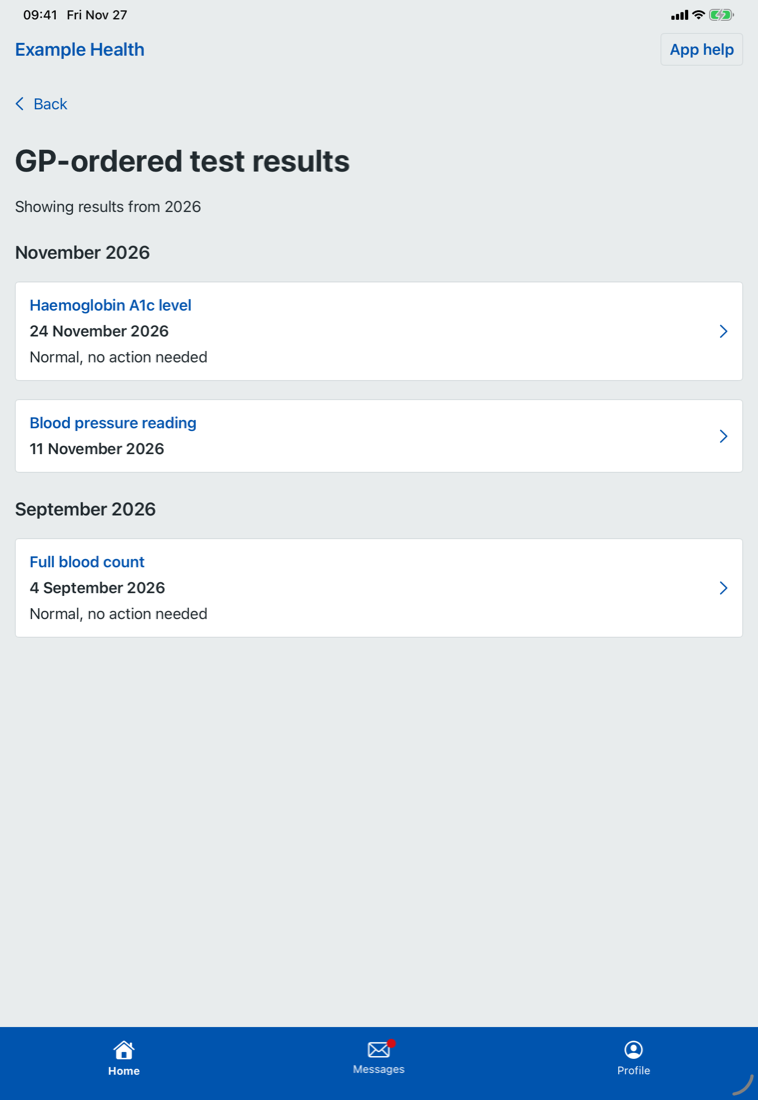
Results grouped by the month they were taken, newest first, each a card that opens it.
PatientApp/TestResultsView.swift
import LilyThemes
import LilyUI
import SwiftUI

/// Results grouped by the month they were taken, newest first; each card opens the result.
struct TestResultsView: View {
    @Environment(\.lilyTokens) private var tokens

    private var months: [(String, [TestResult])] {
        var order: [String] = []
        var byMonth: [String: [TestResult]] = [:]
        for result in Records.results {
            let month = Dates.month(result.date)
            if byMonth[month] == nil { order.append(month) }
            byMonth[month, default: []].append(result)
        }
        return order.map { ($0, byMonth[$0] ?? []) }
    }

    var body: some View {
        Screen(title: Words.resultsHeading, back: true) {
            Text(Words.showingFrom(String(Records.results.first?.date.prefix(4) ?? "")))
            ForEach(months, id: \.0) { month, results in
                SectionHeading(month)
                ForEach(results) { result in
                    NavigationLink { NotBuilt(title: result.name) } label: {
                        Card {
                            HStack {
                                VStack(alignment: .leading, spacing: 8) {
                                    Text(result.name).bold().foregroundStyle(tokens.primary)
                                    Text(Dates.long(result.date)).bold()
                                    if let comment = result.comment { Text(comment) }
                                }
                                .multilineTextAlignment(.leading)
                                Spacer()
                                Image(systemName: "chevron.right").foregroundStyle(tokens.primary).accessibilityHidden(true)
                            }
                        }
                    }
                }
            }
        }
    }
}
Step 11: The frame
A top bar with the service's name and help, the screens, and a tab bar. The tab bar is drawn
here so it matches the service's design, so it must still say which tab is selected, as TabView does, and Messages says how many are unread.
PatientApp/AppShell.swift
import LilyThemes
import LilyUI
import SwiftUI

enum Section: String, CaseIterable {
    case home, messages, profile
}

/// The app's frame: a top bar with the service's name and help, the section's screens, and a tab bar. Each tab keeps its own
/// navigation stack.
struct AppShell: View {
    @State private var section = Section.home
    @Environment(\.lilyTokens) private var tokens

    var body: some View {
        VStack(spacing: 0) {
            TopBar()
            Group {
                switch section {
                case .home: NavigationStack { HomeView() }
                case .messages: NavigationStack { MessagesView() }
                case .profile: NavigationStack { ProfileView() }
                }
            }
            .frame(maxHeight: .infinity)
            TabBar(selection: $section)
        }
        .background(tokens.base200)
    }
}

/// The service's name, as text (the app's own mark would go here, named for the service), and the help button.
private struct TopBar: View {
    @Environment(\.lilyTokens) private var tokens

    var body: some View {
        HStack {
            Text(Words.appName).font(.title3.bold()).foregroundStyle(tokens.primary)
            Spacer()
            Button {} label: {
                Text(Words.appHelp).bold().padding(.horizontal, 10).frame(minHeight: 44)
            }
            .foregroundStyle(tokens.primary)
            .overlay(RoundedRectangle(cornerRadius: tokens.radiusField).strokeBorder(tokens.base300).padding(.vertical, 4))
        }
        .padding(.horizontal, 16)
        .background(tokens.base200)
    }
}

/// The tab bar, drawn here so it matches the service's design. Each tab says whether it is selected, as TabView does, and
/// Messages says how many are unread.
private struct TabBar: View {
    @Binding var selection: Section
    @Environment(\.lilyTokens) private var tokens
    private let unread = Records.inboxes.map(\.unread).reduce(0, +)

    private func tab(_ section: Section) -> (label: String, icon: String) {
        switch section {
        case .home: (Words.home, "house")
        case .messages: (Words.messages, "envelope")
        case .profile: (Words.profile, "person.crop.circle")
        }
    }

    var body: some View {
        HStack {
            ForEach(Section.allCases, id: \.self) { section in
                let (label, icon) = tab(section)
                let selected = section == selection
                Button { selection = section } label: {
                    VStack(spacing: 4) {
                        Image(systemName: icon).font(.title3).symbolVariant(selected ? .fill : .none)
                            .overlay(alignment: .topTrailing) {
                                if section == .messages && unread > 0 {
                                    Circle().fill(tokens.error).frame(width: 10, height: 10).offset(x: 4, y: -2)
                                }
                            }
                            .accessibilityHidden(true)
                        Text(label).font(.caption).fontWeight(selected ? .bold : .regular)
                    }
                    .frame(maxWidth: .infinity, minHeight: 52)
                }
                .foregroundStyle(tokens.primaryContent)
                .accessibilityLabel(section == .messages && unread > 0 ? "\(label), \(Words.unread(unread))" : label)
                .accessibilityAddTraits(selected ? [.isSelected] : [])
            }
        }
        .padding(.top, 8)
        .background(tokens.primary.ignoresSafeArea(edges: .bottom))
        .accessibilityElement(children: .contain)
        .accessibilityLabel(Words.tabs)
    }
}
Step 12: Start the app
.lilyTheme(.nhsEnglandPatients) draws every Lily component in that theme's
tokens. Any other theme in LilyTokens works the same way.
PatientApp/PatientApp.swift
import LilyThemes
import SwiftUI

@main
struct PatientApp: App {
    @State private var started = false

    var body: some Scene {
        WindowGroup {
            Group {
                if started {
                    AppShell().preferredColorScheme(.light)
                } else {
                    // White status bar text on the blue start screen.
                    StartView { started = true }.preferredColorScheme(.dark)
                }
            }
            .lilyTheme(.nhsEnglandPatients)
        }
    }
}
Step 13: Test every screen
A UI test that goes where a person goes, runs the platform's accessibility audit on each
screen, and keeps a screenshot of each; and one at the largest text size. In the PatientAppUITests folder Xcode made:
PatientAppUITests/PatientAppTests.swift
import XCTest

// The seven screens as a person reaches them, each checked by the platform's accessibility audit and kept as a screenshot.
final class PatientAppTests: XCTestCase {
    @MainActor private func check(_ app: XCUIApplication, _ name: String) throws {
        // Let a pushed screen finish sliding in: mid-slide, its text reads as clipped.
        sleep(1)
        try app.performAccessibilityAudit { issue in
            // Text under the home indicator, which iOS fades: not the app's colours.
            guard let element = issue.element else { return true }
            if element.frame.minY > app.windows.firstMatch.frame.maxY - 40 { return true }
            // At the largest text sizes SwiftUI breaks a long word with a hyphen ("Appoint-ments"), which the audit reads as
            // clipped; testLargestText shows the words whole.
            if issue.auditType == .textClipped {
                return element.label.split(separator: " ").contains { $0.count >= 11 }
            }
            return false
        }
        let shot = XCTAttachment(screenshot: XCUIScreen.main.screenshot())
        shot.name = name
        shot.lifetime = .keepAlways
        add(shot)
    }

    @MainActor func testLargestText() throws {
        let app = XCUIApplication()
        app.launchArguments += ["-UIPreferredContentSizeCategoryName", "UICTContentSizeCategoryAccessibilityXXXL"]
        app.launch()
        app.buttons["Continue"].tap()
        sleep(1)
        var shot = XCTAttachment(screenshot: XCUIScreen.main.screenshot())
        shot.name = "large-home"
        shot.lifetime = .keepAlways
        add(shot)
        app.buttons["Appointments"].tap()
        sleep(1)
        shot = XCTAttachment(screenshot: XCUIScreen.main.screenshot())
        shot.name = "large-appointments"
        shot.lifetime = .keepAlways
        add(shot)
    }

    @MainActor func testEveryScreen() throws {
        let app = XCUIApplication()
        app.launch()
        XCTAssertTrue(app.buttons["Continue"].waitForExistence(timeout: 10))
        try check(app, "1-start")
        app.buttons["Continue"].tap()
        XCTAssertTrue(app.staticTexts["Home"].firstMatch.waitForExistence(timeout: 5))
        try check(app, "2-home")
        app.buttons["Messages, 1 unread message"].tap()
        XCTAssertTrue(app.staticTexts["You have 4 inboxes"].waitForExistence(timeout: 5))
        try check(app, "3-messages")
        app.buttons["Profile"].tap()
        XCTAssertTrue(app.staticTexts["Personal details"].waitForExistence(timeout: 5))
        try check(app, "4-profile")
        app.buttons["Home"].tap()
        app.buttons["Appointments"].tap()
        XCTAssertTrue(app.staticTexts["GP surgery"].waitForExistence(timeout: 5))
        try check(app, "5-appointments")
        app.buttons["Back"].tap()
        app.buttons["Prescriptions"].tap()
        XCTAssertTrue(app.staticTexts["Requested medicines"].waitForExistence(timeout: 5))
        try check(app, "6-prescriptions")
        app.buttons["Back"].tap()
        app.buttons["Test results"].tap()
        XCTAssertTrue(app.staticTexts["GP-ordered test results"].waitForExistence(timeout: 5))
        try check(app, "7-results")
    }
}
Check your work: press ⌘ U with an iPhone simulator, then again with an iPad: both tests pass. Turn on VoiceOver and move through the tab bar: each tab says its name, the selected one says so, and Messages says "1 unread message".
What this does not do yet
- It signs no one in, and asks no service for records: the start screen's button goes straight in, and the records are examples.
- Most links open a screen that says it is not part of the tutorial; each is where the service would go.
- It has one language. The words are in one place, so adding another touches no view.
Next steps
- .NET MAUI version: the same app in C#, for iPhone, iPad and Android.
- Kotlin version: the same app on Android phones and tablets.
- Book an appointment in Swift: a booking screen behind the Appointments link.
- Pre-operative assessment in Swift: a questionnaire a patient fills in before an operation.