
Book an appointment in Kotlin
A booking screen for Android, with Jetpack Compose and Lily: labelled choices, a line of guidance, and the bars a phone app has.
What you'll build
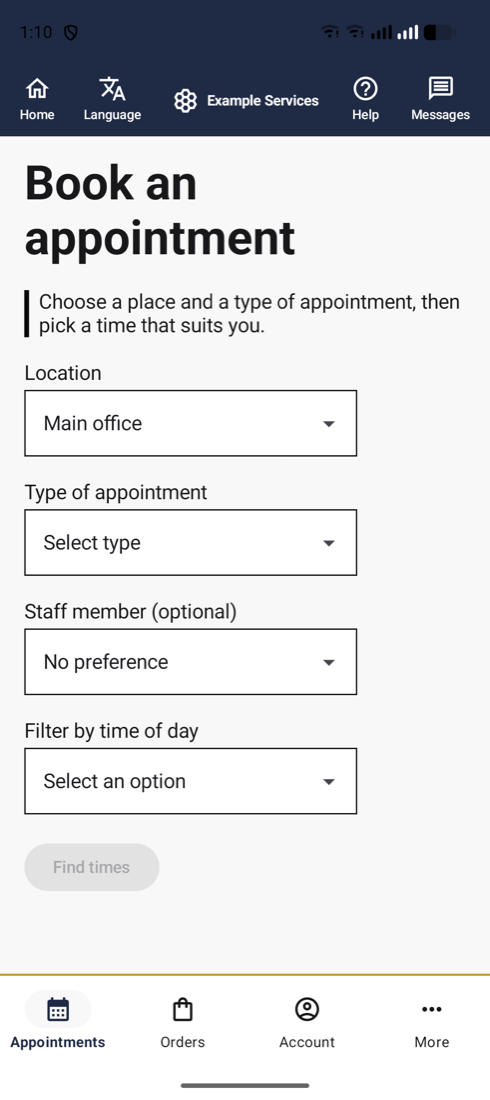
One screen of a booking app, on Android, with Jetpack Compose: a top bar of labelled buttons, a large heading, a line of guidance, four choices (where, what type, with whom, and what time of day), and a tab bar. It is generic: a service anyone might book, with example places and people. About 30 minutes.
Before you start
You need Android Studio, JDK 17 or later, and the Kotlin tutorial's first steps. Lily's Kotlin libraries are not on Maven Central yet, so the app is a module of the repository's own Gradle build:
git clone https://github.com/LilyDesignSystem/lily-design-system
cd lily-design-system/lily-design-system-kotlin
Add ":book-appointment" to the include(…) line of settings.gradle.kts. Each code block below is one whole file, under the path
shown above it.
Step 1: Make the module
Lily's components are built on compose.foundation only. The app adds Material 3 for
its dropdowns and navigation bar, the Android convention for both.
book-appointment/build.gradle.kts
// The book-an-appointment app: one screen, drawn with Lily's Compose components and Material 3's dropdowns and navigation bar.
import org.jetbrains.kotlin.gradle.dsl.JvmTarget

plugins {
    alias(libs.plugins.android.application)
    alias(libs.plugins.kotlin.compose)
}

android {
    namespace = "com.example.bookappointment"
    compileSdk { version = release(37) { minorApiLevel = 2 } }
    defaultConfig {
        applicationId = "com.example.bookappointment"
        minSdk = 24
        targetSdk = 37
        versionCode = 1
        versionName = "1.0"
    }
    compileOptions {
        sourceCompatibility = JavaVersion.VERSION_17
        targetCompatibility = JavaVersion.VERSION_17
    }
}

kotlin { compilerOptions { jvmTarget.set(JvmTarget.JVM_17) } }

dependencies {
    implementation(project(":lily-compose"))
    implementation(project(":lily-compose-themes"))
    implementation(platform(libs.compose.bom))
    implementation(libs.compose.foundation)
    implementation("androidx.compose.material3:material3")
    implementation("androidx.compose.material:material-icons-extended")
    implementation(libs.activity.compose)
}
book-appointment/src/main/AndroidManifest.xml
<?xml version="1.0" encoding="utf-8"?>
<manifest xmlns:android="http://schemas.android.com/apk/res/android">
    <application
        android:label="@string/app_name"
        android:supportsRtl="true"
        android:allowBackup="false"
        android:theme="@android:style/Theme.Material.Light.NoActionBar">
        <activity
            android:name=".MainActivity"
            android:exported="true">
            <intent-filter>
                <action android:name="android.intent.action.MAIN" />
                <category android:name="android.intent.category.LAUNCHER" />
            </intent-filter>
        </activity>
    </application>
</manifest>
Step 2: Write the words
Every word is in strings.xml, Android's own place for them, so a translation is
another values- folder.
book-appointment/src/main/res/values/strings.xml
<?xml version="1.0" encoding="utf-8"?>
<!-- Every word the app shows. Lily's components have none of their own. -->
<resources>
    <string name="app_name">Example Services</string>
    <string name="home">Home</string>
    <string name="language">Language</string>
    <string name="help">Help</string>
    <string name="messages">Messages</string>
    <string name="title">Book an appointment</string>
    <string name="intro">Choose a place and a type of appointment, then pick a time that suits you.</string>
    <string name="location">Location</string>
    <string name="type">Type of appointment</string>
    <string name="person">Staff member (optional)</string>
    <string name="time_of_day">Filter by time of day</string>
    <string name="find_times">Find times</string>
    <string name="appointments">Appointments</string>
    <string name="orders">Orders</string>
    <string name="account">Account</string>
    <string name="more">More</string>
</resources>
Step 3: Describe the booking
book-appointment/src/main/kotlin/com/example/bookappointment/Booking.kt
// What the person has chosen, and the choices offered. The choices come from the service; these are examples.
package com.example.bookappointment

data class Choice(val id: String, val label: String)

data class Booking(
    val location: String = "main",
    val type: String = "",
    val person: String = "any",
    val timeOfDay: String = "",
) {
    /** Times can be looked for once a type is chosen: the type decides how long the appointment is. */
    val canFindTimes: Boolean get() = type.isNotEmpty()

    companion object {
        val locations = listOf(Choice("main", "Main office"), Choice("north", "North branch"), Choice("online", "Online"))
        val types = listOf(
            Choice("", "Select type"), Choice("first", "First visit"), Choice("follow-up", "Follow-up"),
            Choice("advice", "Advice by phone"),
        )
        val people = listOf(Choice("any", "No preference"), Choice("sam", "Sam Okoro"), Choice("alex", "Alex Kim"))
        val timesOfDay = listOf(
            Choice("", "Select an option"), Choice("morning", "Morning"), Choice("afternoon", "Afternoon"),
            Choice("evening", "Evening"),
        )
    }
}
Step 4: Choose the colours
Lily ships no brand. The navy band and the gold line are the service's own; the text on the band is white, well above 4.5:1.
book-appointment/src/main/kotlin/com/example/bookappointment/Brand.kt
// The service's own colours. A brand colour colours a band or a line, never text on the page; the text on the band is white,
// well above 4.5:1 on this navy (AGENTS/visual-identity.md). Lily ships no brand: these are yours.
package com.example.bookappointment

import androidx.compose.ui.graphics.Color

object Brand {
    val band = Color(0xFF1F2A44)
    val onBand = Color.White
    val line = Color(0xFFC89B3C)
}
Step 5: Ask for a choice
Lily's Field draws the label and hands the control a Modifier carrying
its spoken name, so TalkBack says "Location" before "Main office". The box is Material 3's exposed
dropdown.
book-appointment/src/main/kotlin/com/example/bookappointment/ChoiceField.kt
package com.example.bookappointment

import androidx.compose.foundation.layout.widthIn
import androidx.compose.material3.DropdownMenu
import androidx.compose.material3.DropdownMenuItem
import androidx.compose.material3.ExperimentalMaterial3Api
import androidx.compose.material3.ExposedDropdownMenuAnchorType
import androidx.compose.material3.ExposedDropdownMenuBox
import androidx.compose.material3.ExposedDropdownMenuDefaults
import androidx.compose.material3.LocalTextStyle
import androidx.compose.material3.OutlinedTextField
import androidx.compose.material3.OutlinedTextFieldDefaults
import androidx.compose.material3.Text
import androidx.compose.runtime.Composable
import androidx.compose.runtime.getValue
import androidx.compose.runtime.mutableStateOf
import androidx.compose.runtime.remember
import androidx.compose.runtime.setValue
import androidx.compose.ui.Modifier
import androidx.compose.ui.graphics.RectangleShape
import androidx.compose.ui.unit.dp
import androidx.compose.ui.unit.sp
import io.github.lilydesignsystem.compose.Field
import io.github.lilydesignsystem.compose.themes.LocalLilyTokens

/** A labelled choice drawn as a box with an arrow, like a web select. Lily's Field gives the label, which TalkBack says first. */
@OptIn(ExperimentalMaterial3Api::class)
@Composable
fun ChoiceField(label: String, choices: List<Choice>, selection: String, onSelect: (String) -> Unit) {
    val tokens = LocalLilyTokens.current
    var open by remember { mutableStateOf(false) }
    Field(label = label) { semantics ->
        ExposedDropdownMenuBox(expanded = open, onExpandedChange = { open = it }) {
            OutlinedTextField(
                value = choices.firstOrNull { it.id == selection }?.label.orEmpty(),
                onValueChange = {},
                readOnly = true,
                singleLine = true,
                textStyle = LocalTextStyle.current.copy(fontSize = 17.sp),
                shape = RectangleShape,
                trailingIcon = { ExposedDropdownMenuDefaults.TrailingIcon(expanded = open) },
                colors = OutlinedTextFieldDefaults.colors(
                    unfocusedBorderColor = tokens.baseContent,
                    focusedBorderColor = tokens.baseContent,
                    unfocusedContainerColor = tokens.base100,
                    focusedContainerColor = tokens.base100,
                ),
                modifier = semantics
                    .menuAnchor(ExposedDropdownMenuAnchorType.PrimaryNotEditable)
                    .widthIn(max = 300.dp),
            )
            DropdownMenu(expanded = open, onDismissRequest = { open = false }) {
                choices.forEach { choice ->
                    DropdownMenuItem(text = { Text(choice.label) }, onClick = {
                        onSelect(choice.id)
                        open = false
                    })
                }
            }
        }
    }
}
Step 6: Draw the screen
book-appointment/src/main/kotlin/com/example/bookappointment/BookAppointmentScreen.kt
package com.example.bookappointment

import androidx.compose.foundation.background
import androidx.compose.foundation.layout.Arrangement
import androidx.compose.foundation.layout.Column
import androidx.compose.foundation.layout.fillMaxSize
import androidx.compose.foundation.layout.padding
import androidx.compose.foundation.rememberScrollState
import androidx.compose.foundation.verticalScroll
import androidx.compose.material3.Button
import androidx.compose.material3.Text
import androidx.compose.runtime.Composable
import androidx.compose.runtime.getValue
import androidx.compose.runtime.mutableStateOf
import androidx.compose.runtime.saveable.rememberSaveable
import androidx.compose.runtime.setValue
import androidx.compose.ui.Modifier
import androidx.compose.ui.res.stringResource
import androidx.compose.ui.semantics.heading
import androidx.compose.ui.semantics.semantics
import androidx.compose.ui.text.font.FontWeight
import androidx.compose.ui.unit.dp
import androidx.compose.ui.unit.sp
import io.github.lilydesignsystem.compose.InsetText
import io.github.lilydesignsystem.compose.themes.LocalLilyTokens

@Composable
fun BookAppointmentScreen(modifier: Modifier = Modifier) {
    val tokens = LocalLilyTokens.current
    var location by rememberSaveable { mutableStateOf("main") }
    var type by rememberSaveable { mutableStateOf("") }
    var person by rememberSaveable { mutableStateOf("any") }
    var timeOfDay by rememberSaveable { mutableStateOf("") }
    val booking = Booking(location, type, person, timeOfDay)

    Column(
        modifier = modifier.fillMaxSize().background(tokens.base200).verticalScroll(rememberScrollState())
            .padding(horizontal = 20.dp, vertical = 16.dp),
        verticalArrangement = Arrangement.spacedBy(20.dp),
    ) {
        Text(
            stringResource(R.string.title),
            fontSize = 40.sp,
            lineHeight = 46.sp,
            fontWeight = FontWeight.Bold,
            color = tokens.baseContent,
            modifier = Modifier.semantics { heading() },
        )
        InsetText { Text(stringResource(R.string.intro), fontSize = 17.sp, color = tokens.baseContent) }
        ChoiceField(stringResource(R.string.location), Booking.locations, location) { location = it }
        ChoiceField(stringResource(R.string.type), Booking.types, type) { type = it }
        ChoiceField(stringResource(R.string.person), Booking.people, person) { person = it }
        ChoiceField(stringResource(R.string.time_of_day), Booking.timesOfDay, timeOfDay) { timeOfDay = it }
        Button(onClick = {}, enabled = booking.canFindTimes) { Text(stringResource(R.string.find_times)) }
    }
}
Step 7: Add the bars
The top bar is drawn here to match the service's design. The bottom bar is Material 3's NavigationBar, which tells TalkBack which tab is selected.
book-appointment/src/main/kotlin/com/example/bookappointment/AppShell.kt
// The app's frame: a top bar of labelled buttons, the screen, and a navigation bar. The top bar is drawn here to match the
// service's design; Material 3's NavigationBar says which tab is selected, as a tab bar must.
package com.example.bookappointment

import androidx.compose.foundation.background
import androidx.compose.foundation.layout.Arrangement
import androidx.compose.foundation.layout.Column
import androidx.compose.foundation.layout.Row
import androidx.compose.foundation.layout.fillMaxWidth
import androidx.compose.foundation.layout.padding
import androidx.compose.foundation.layout.sizeIn
import androidx.compose.foundation.layout.statusBarsPadding
import androidx.compose.foundation.layout.Spacer
import androidx.compose.material.icons.Icons
import androidx.compose.material.icons.automirrored.outlined.HelpOutline
import androidx.compose.material.icons.automirrored.outlined.Message
import androidx.compose.material.icons.filled.CalendarMonth
import androidx.compose.material.icons.outlined.AccountCircle
import androidx.compose.material.icons.outlined.CalendarMonth
import androidx.compose.material.icons.outlined.Home
import androidx.compose.material.icons.outlined.MoreHoriz
import androidx.compose.material.icons.outlined.ShoppingBag
import androidx.compose.material.icons.outlined.Translate
import androidx.compose.material.icons.outlined.Hive
import androidx.compose.material3.HorizontalDivider
import androidx.compose.material3.Icon
import androidx.compose.material3.NavigationBar
import androidx.compose.material3.NavigationBarItem
import androidx.compose.material3.NavigationBarItemDefaults
import androidx.compose.material3.Scaffold
import androidx.compose.material3.Text
import androidx.compose.material3.TextButton
import androidx.compose.runtime.Composable
import androidx.compose.runtime.getValue
import androidx.compose.runtime.mutableIntStateOf
import androidx.compose.runtime.saveable.rememberSaveable
import androidx.compose.runtime.setValue
import androidx.compose.ui.Alignment
import androidx.compose.ui.Modifier
import androidx.compose.ui.graphics.vector.ImageVector
import androidx.compose.ui.res.stringResource
import androidx.compose.ui.semantics.heading
import androidx.compose.ui.semantics.semantics
import androidx.compose.ui.text.font.FontWeight
import androidx.compose.ui.unit.dp
import androidx.compose.ui.unit.sp
import io.github.lilydesignsystem.compose.themes.LocalLilyTokens

@Composable
fun AppShell() {
    var tab by rememberSaveable { mutableIntStateOf(0) }
    Scaffold(topBar = { TopBar() }, bottomBar = { TabBar(tab) { tab = it } }) { padding ->
        BookAppointmentScreen(Modifier.padding(padding))
    }
}

@Composable
private fun BarButton(icon: ImageVector, label: String) {
    TextButton(onClick = {}, modifier = Modifier.sizeIn(minWidth = 52.dp, minHeight = 48.dp)) {
        Column(horizontalAlignment = Alignment.CenterHorizontally) {
            Icon(icon, contentDescription = null, tint = Brand.onBand)
            Text(label, fontSize = 11.sp, color = Brand.onBand)
        }
    }
}

@Composable
private fun TopBar() {
    Row(
        modifier = Modifier.fillMaxWidth().background(Brand.band).statusBarsPadding().padding(horizontal = 4.dp),
        verticalAlignment = Alignment.CenterVertically,
    ) {
        BarButton(Icons.Outlined.Home, stringResource(R.string.home))
        BarButton(Icons.Outlined.Translate, stringResource(R.string.language))
        Spacer(Modifier.weight(1f))
        Row(
            verticalAlignment = Alignment.CenterVertically,
            horizontalArrangement = Arrangement.spacedBy(6.dp),
            modifier = Modifier.semantics(mergeDescendants = true) { heading() },
        ) {
            Icon(Icons.Outlined.Hive, contentDescription = null, tint = Brand.onBand)
            Text(stringResource(R.string.app_name), fontSize = 12.sp, fontWeight = FontWeight.Bold, color = Brand.onBand)
        }
        Spacer(Modifier.weight(1f))
        BarButton(Icons.AutoMirrored.Outlined.HelpOutline, stringResource(R.string.help))
        BarButton(Icons.AutoMirrored.Outlined.Message, stringResource(R.string.messages))
    }
}

@Composable
private fun TabBar(selected: Int, onSelect: (Int) -> Unit) {
    val tokens = LocalLilyTokens.current
    val tabs = listOf(
        Triple(R.string.appointments, Icons.Outlined.CalendarMonth, Icons.Filled.CalendarMonth),
        Triple(R.string.orders, Icons.Outlined.ShoppingBag, Icons.Outlined.ShoppingBag),
        Triple(R.string.account, Icons.Outlined.AccountCircle, Icons.Outlined.AccountCircle),
        Triple(R.string.more, Icons.Outlined.MoreHoriz, Icons.Outlined.MoreHoriz),
    )
    Column {
        HorizontalDivider(thickness = 2.dp, color = Brand.line)
        NavigationBar(containerColor = tokens.base100) {
            tabs.forEachIndexed { index, (label, icon, selectedIcon) ->
                val isSelected = index == selected
                NavigationBarItem(
                    selected = isSelected,
                    onClick = { onSelect(index) },
                    icon = { Icon(if (isSelected) selectedIcon else icon, contentDescription = null) },
                    label = { Text(stringResource(label), fontWeight = if (isSelected) FontWeight.Bold else FontWeight.Normal) },
                    colors = NavigationBarItemDefaults.colors(
                        selectedIconColor = Brand.band,
                        selectedTextColor = Brand.band,
                        indicatorColor = tokens.base200,
                        unselectedIconColor = tokens.baseContent,
                        unselectedTextColor = tokens.baseContent,
                    ),
                )
            }
        }
    }
}
Step 8: Start the app
LilyTheme draws Lily's components in the light theme's tokens; the app sets its own
type scale on top.
book-appointment/src/main/kotlin/com/example/bookappointment/MainActivity.kt
package com.example.bookappointment

import android.os.Bundle
import androidx.activity.ComponentActivity
import androidx.activity.compose.setContent
import androidx.activity.enableEdgeToEdge
import androidx.compose.runtime.CompositionLocalProvider
import androidx.compose.ui.unit.sp
import io.github.lilydesignsystem.compose.LocalLilyTextStyles
import io.github.lilydesignsystem.compose.themes.LilyTheme
import io.github.lilydesignsystem.compose.themes.LilyTokens

class MainActivity : ComponentActivity() {
    override fun onCreate(savedInstanceState: Bundle?) {
        super.onCreate(savedInstanceState)
        enableEdgeToEdge()
        setContent {
            LilyTheme(LilyTokens.light) {
                // The app's type scale: Lily's labels and hints at the size this service reads at.
                val styles = LocalLilyTextStyles.current
                CompositionLocalProvider(
                    LocalLilyTextStyles provides styles.copy(
                        body = styles.body.copy(fontSize = 17.sp),
                        small = styles.small.copy(fontSize = 15.sp),
                    ),
                ) { AppShell() }
            }
        }
    }
}
Run it with ./gradlew :book-appointment:installDebug on an emulator or a phone.
Check your work: turn on TalkBack and swipe through the screen: each choice says its label, then its value, and the Appointments tab says it is selected. "Find times" is dimmed until you choose a type.
What this does not do yet
- The buttons in the bars and "Find times" do nothing: the screen is the lesson, not the booking.
- The choices are fixed examples. A real app asks its service for them, in the person's language.
- It has one language. The words are in one place, so adding another touches no view.
Next steps
- Swift version: the same screen on iOS with SwiftUI.
- .NET MAUI version: the same screen on .NET MAUI.
- Kotlin tutorial: the rest of Lily's Compose components.